728x90
반응형

PyMySQL 설치

conda install -c conda-forge PyMySQL

mysqlapp 생성

python manage.py startapp mysqlapp

mysqlapp web 구현

mysqlapp
- 함수명 index 생성
- HttpResponse("index 페이지 입니다." ) 출력
- mysqlapp에 urls.py 생성
- url 패턴 : http ://127.0.0.1:8000/mysql/
  • mysqlapp > urls.py
from django.urls import path
from . import views

urlpatterns = [
    # http://127.0.0.1:8000/mysql/
    path('', views.indexHtml ),
]
  • config > urls.py
from django.contrib import admin
from django.urls import path, include

urlpatterns = [
    ### mysqlapp의 urls.py 사용하기
    # http://127.0.0.1:8000/mysql/index
    path("mysql/", include("mysqlapp.urls")),

    path('admin/', admin.site.urls),
]
  • mysqlapp > views.py
from django.shortcuts import render
from django.http import HttpResponse

### http ://127.0.0.1:8000/mysql/
def index(request) :
    return HttpResponse("<u>index 페이지입니다.</u>")
  • config > settiings.py에서 INSTALLED_APPS에 'mysqlapp' 추가

데이터 여러건 조회하기

  • templates\mysqlapp\cart\cart_list.html
<!DOCTYPE html>
<html lang="en">
  <head>
    <meta charset="UTF-8" />
    <meta name="viewport" content="width=device-width, initial-scale=1.0" />
    <title>Document</title>
  </head>
  <body>
    <h2>장바구니 전체 목록 조회하기🧺</h2>
    <h5>조회 건수 : {{cart_cnt}}</h5>
    <table border="1">
      <tr>
        <th>회원아이디</th>
        <th>주문번호</th>
      </tr>
      {% for data in cart_list %}
      <tr>
        <th>{{ data.cart_member }}</th>
        <th>{{ data.cart_no }}</th>
      </tr>
      {% endfor %}
    </table>
  </body>
</html>
  • mysqlapp > views.py
from django.shortcuts import render
from django.http import HttpResponse

from mysqlapp.model.cart_model import Cart

### http ://127.0.0.1:8000/mysql/
def index(request) :
    return HttpResponse("index 페이지입니다.")

### 데이터 여러건 조회하기
# - 장바구니 리스트 조회하기
# - /mysql/cart_list/
def cart_list(request) :
    ### model(DB) 처리
    # Cart class 생성
    cart = Cart()
    
    ### 장바구니 전체 정보 조회하기
    # - cart_cnt : 정수값을 반환받음
    # - cart_list : [{'컬럼명' : 값, '컬럼명' : 값, ...}, {}, {}]
    cart_cnt, cart_list = cart.getCartList()
    
    ### 반환
    return render(
        request,
        "mysqlapp/cart/cart_list.html",
        {"cart_cnt" : cart_cnt,
         "cart_list" : cart_list}
    )
  • mysqlapp > urls.py
from django.urls import path
from . import views

urlpatterns = [
     # http://127.0.0.1:8000/mysql/cart_list/
    path('cart_list/', views.cart_list ),
    # http://127.0.0.1:8000/mysql/
    path('', views.index ),
]


  • mysqlapp > model > model.py
    데이터와의 접속 정보를 담고, 커서 받아오기, 자원 종료 > 데이터베이스와 관련된 설정을 하는 곳
### 데이터베이스 처리 순서
# - DB 드라이버 연결 (PyMySQL이 연결 해줌)
# - DB 접속
# - DB로부터 cursor 받아오기
# - 조회/입력/수정/삭제 sql을 DB서버로 요청
# - DB 자원 반환

# - DB 드라이버 연결 (PyMySQL이 연결 해줌)
import pymysql

class Mysql_Model :
    ### 생성자
    def __init__(self) :
        # DB 접속 정보 정의
        self.initDBInfo()
        
        # DB 접속
        self.DBConnection()
        
        # DB로부터 cursor 받아오기
        self.DBCursor()
    
    ### DB 접속정보 확인
    def initDBInfo(self) :
        self.host = "localhost"
        self.user = "gjuser"
        self.password = "dbdb"
        self.db = "gjdb"
        # 문자 인코딩 타입
        self.charset = "utf8"
        # 조회 시 컬럼명을 동시에 보여줄지 여부 설정
        self.cursorclass = pymysql.cursors.DictCursor
        # 입력/수정/삭제 시 DB에 자동 반영 여부
        self.autocommit = True
        
    # - DB 접속
    def DBConnection(self) :
        try :
            self.conn = pymysql.connect(
                host = self.host,
                user = self.user,
                password = self.password,
                db = self.db,
                charset = self.charset,
                cursorclass = self.cursorclass,
                autocommit = self.autocommit
            )
            print("DB 접속 성공 -->", self.conn)
        except :
            print("DB 접속 정보 확인이 필요합니다.")
            
    # - DB로부터 cursor 받아오기
    def DBCursor(self) :
        self.cur = self.conn.cursor()
        
    # - 조회/입력/수정/삭제 sql을 DB서버로 요청
    # - cart_model.py에서 처리
    
    # - DB 자원 반환
    def DBClose(self) :
        try:
            self.cur.close()
            self.conn.close()
            print("DB 정보 반환 완료")
        except:
            print("이미 DB 정보가 반환되었습니다.")
  • mysqlapp > model > cart_model.py
    sql구문 작성
import pymysql
from mysqlapp.model.mysql import Mysql_Model

class Cart :
    ### 생성자
    def __init__(self) :
        self.db = Mysql_Model()
        
    ### 장바구니 전체 조회하기
    def getCartList(self) :
        sql = """
            Select cart_member, cart_no
            From cart
            Order By cart_member, cart_no        
        """
        
        ### DB에 요청하기 : cursor에 담기
        # 실행 결과의 건수
        rs_cnt = self.db.cur.execute(sql)
        
        # 실행 결과 데이터
        rows = self.db.cur.fetchall()
        
        # DB 정보 반환하기
        self.db.DBClose()
        
        return rs_cnt, rows


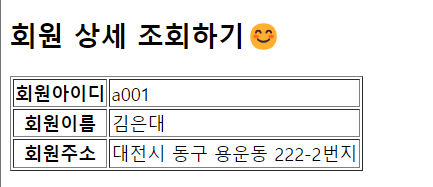
회원 상세정보 불러오기

  • templates\mysqlapp\cart\cart_list.html
<!DOCTYPE html>
<html lang="ko">
  <head>
    <meta charset="UTF-8" />
    <meta name="viewport" content="width=device-width, initial-scale=1.0" />
    <title>Document</title>
  </head>
  <body>
    <h2>회원 상세 조회하기😊</h2>
    <table border="1">
      <tr>
        <th>회원아이디</th>
        <td>{{mem_view.mem_id}}</td>
      </tr>
      <tr>
        <th>회원이름</th>
        <td>{{mem_view.mem_name}}</td>
      </tr>
      <tr>
        <th>회원주소</th>
        <td>{{mem_view.mem_add1}} {{mem_view.mem_add2}}</td>
      </tr>
    </table>
  </body>
</html>
  • mysqlapp > urls.py
from django.urls import path
from . import views

urlpatterns = [
    # http://127.0.0.1:8000/mysql/mem_view/
    path('mem_view/', views.mem_view ),
    
    # http://127.0.0.1:8000/mysql/cart_list/
    path('cart_list/', views.cart_list ),
    
    # http://127.0.0.1:8000/mysql/
    path('', views.index ),
]
  • mysqlapp > views.py
from django.shortcuts import render
from django.http import HttpResponse

from mysqlapp.model.member_model import Member

def mem_view(request) :
    ### 요청 파라메터 받기 : request가 가지고 있음
    if request.method == "POST" :
        mem_id = request.POST.get("mem_id", "none")
    elif request.method == "GET" :
        mem_id = request.GET.get("mem_id", "none")
        
        # DB 조회
        member = Member()
        rs_cnt, mem_view = member.getMemberView(mem_id)
        
    return render(
        request,
        "mysqlapp/member/mem_view.html",
        {"mem_view" : mem_view}
    )
  • mysqlapp > model > member_model.py
import pymysql
from mysqlapp.model.mysql import Mysql_Model

class Member :
    ### 생성자
    def __init__(self) :
        self.db = Mysql_Model()
        
    ### 회원 상세 조회하기
    def getMemberView(self, mem_id) :
        sql = f"""
            Select mem_id, mem_name, mem_add1, mem_add2
            From member   
            Where mem_id = '{mem_id}'  
        """
        
        ### DB에 요청하기 : cursor에 담기
        # 실행 결과의 건수
        rs_cnt = self.db.cur.execute(sql)
        
        # 실행 결과 데이터 
        # - {'컬럼명' : 값, '컬럼명' : 값, ...}
        # 한건 조회 이므로 fetchone
        row = self.db.cur.fetchone()
        
        # DB 정보 반환하기
        self.db.DBClose()
        
        return rs_cnt, row
728x90
반응형
728x90
반응형

Client - Server

client   server(WAS, Web Application Server) DB Server
브라우저
요청 url (http://127.0.0.1:8000/index)

요청(request)
web server

Container(Application)

    config라는 폴더의 djang App(ex. firstapp)
    Apache
넘어 온 주소 확인 후 index를 container로 넘김(즉, index 페이지 요청) →
Tomcat
index라는 이름의 pattern이 들어오면 특정 함수를 실행하라고 정의해 둠
이 함수는 java로 따지면 controller에 있는 함수. 
django로 따지면 views.py에 있는 함수
파싱(parsing)
html을 다시 읽어냄

응답(reponse)
html을 요청한 사람한테 넘김 함수가 실행되면서 html에 담긴 데이터를 web server로 다시 보내줌  


Django

  • Python 프레임워크 : Django, Flask 
  • 가상환경 새로 생성하여 진행
> conda create -n gj_django python=3.9
> conda activate gj_django
> pip install jupyter notebook
> python -m ipykernel install --user --name gj_django --display-name gj_django_kernel
> pip install ipython jupyter matplotlib pandas xlrd seaborn scikit-learn(python 버전 11이상이면 sklearn)
> pip install openpyxl
> conda install -c conda-forge django==4.0.1

Django 프로젝트 생성하기

  • Django 서버 생성
tutorial 파일로 이동
> django-admin startproject config . (config 한칸 띄우고 점. 찍기 > 현재 폴더에 config 폴더 생성 됨)

서버 테스트(웹은 생성시 마다 서버에 문제 없는지 확인 필요)
> python manage.py runserver

ctrl 누르고 아래 주소 클릭
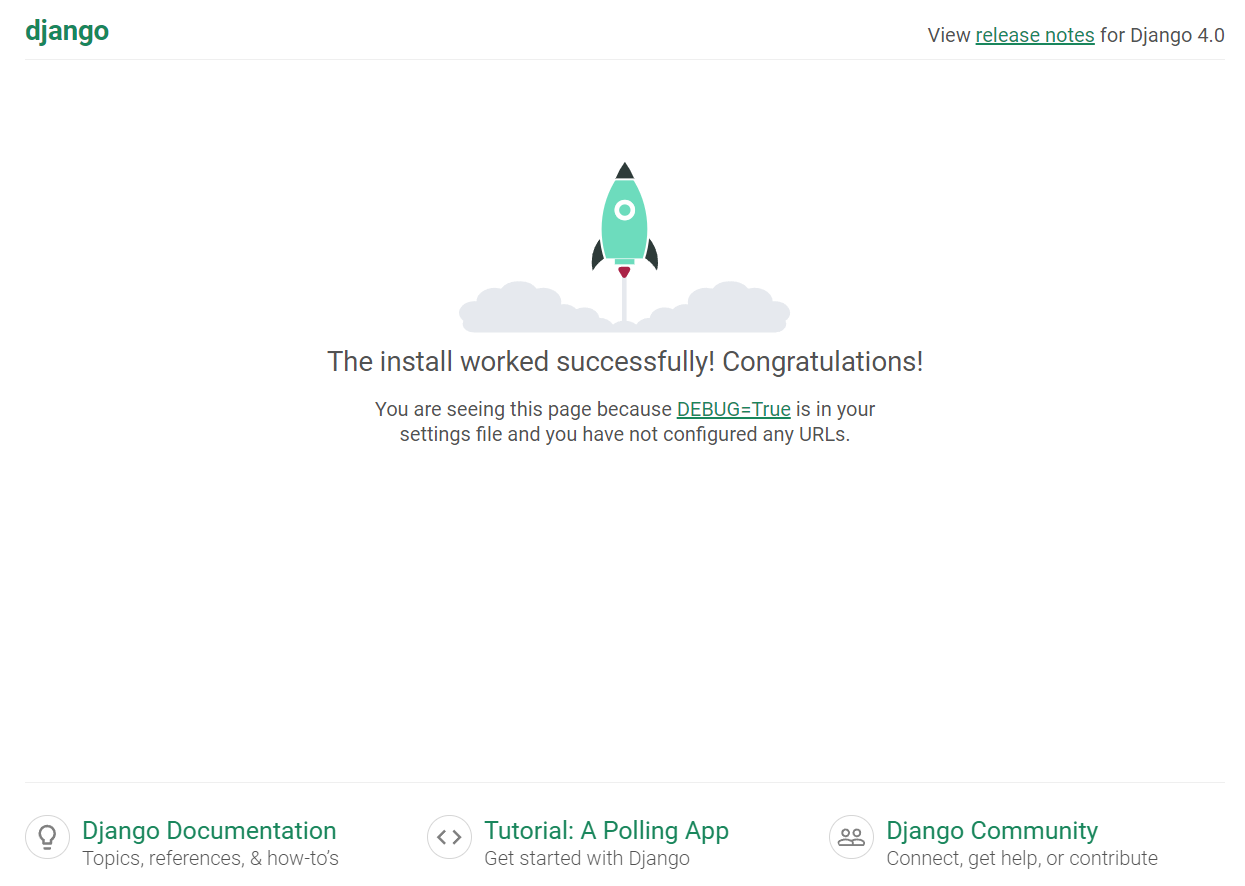
> http://127.0.0.1:8000/

Django 페이지 등장🚀

Django VScode 설정 사항

  • vscode 실행 방법
    Prompt에서 가상환경 실행 후 totutorial 파일로 이동
(gj_django) C:\Users\user\gj_202311\11_Django\edu_django\tutorial>code .


  • config > settings.py 설
1. ALLOWED_HOSTS = [] 에 "127.0.0.1" 입력
결과 > ALLOWED_HOSTS = ["127.0.0.1"]

2. TEMPLATES에서 DIRS': []에 BASE_DIR/"templates" 입력
결과 > 'DIRS': [BASE_DIR/"templates"]

3. 언어 설정
> LANGUAGE_CODE = 'ko-kr'

4. 시간 설정
> TIME_ZONE = 'Asia/Seoul'

5. 파일 위치 설정
STATIC_URL = 'static/' 아래에
> STATICFILES_DIRS = [BASE_DIR/"static"] 추가

6. 나중에 사용할 부분

> INSTALLED_APPS
> DATABASES
 

  Web Site 만들기

  • firstapp 생성
Prompt tutoral 폴더 안에서 
> python manage.py startapp firstapp

영역을 app으로 나눠서 사용함 (ex. loginapp, joinapp)

  • firstapp 실행
INSTALLED_APPS 리스트에 'firstapp' 추가

  Web Site 만들기_함수

  • views.py
    앱의 시작점은 views.py (Spring으로 따지면 Controller에 해당)
from django.shortcuts import render

from django.http import HttpResponse

# Create your views here.
def index(request) :
    return HttpResponse("<u>firstapp의 index 페이지!!</u>")
  • urls.py
from django.contrib import admin
from django.urls import path
from firstapp import views as firstapp_view

urlpatterns = [
    ### http://127.0.0.1:8000/index
    path('index/', firstapp_view.index),

    path('admin/', admin.site.urls),
]


  Web Site 만들기_html

  • views.py
from django.shortcuts import render

from django.http import HttpResponse

# Create your views here.
def index(request) :
    return HttpResponse("<u>firstapp의 index 페이지!!</u>")

### http://127.0.0.1:8000/index_html
def indexHtml(request) :
    return render(
        request,
        "firstapp/index.html",
        {} # 어떤값을 줄건지 딕셔너리에 넣기
    )
  • templates\firstapp 파일 생성 후 index.html 작성
<!DOCTYPE html>
<html lang="ko">
  <head>
    <meta charset="UTF-8" />
    <meta name="viewport" content="width=device-width, initial-scale=1.0" />
    <title>FirstApp - index.html</title>
  </head>
  <body>
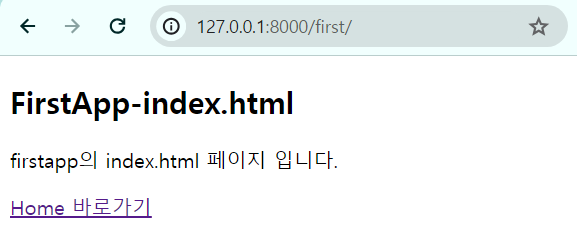
    <h2>FirstApp-index.html</h2>
    <p>firstapp의 index.html 페이지 입니다.</p>
  </body>
</html>
  • urls.py
from django.contrib import admin
from django.urls import path
from firstapp import views as firstapp_view

urlpatterns = [
  
    ### http://127.0.0.1:8000/index
    path('index/', firstapp_view.index),
    
    ### http://127.0.0.1:8000/index_html
    path('index_html/', firstapp_view.indexHtml),

    path('admin/', admin.site.urls),
]


MainApp 생성

  •  mainapp 생성
Prompt tutoral 폴더 안에서 
> python manage.py startapp mainapp

INSTALLED_APPS 리스트에 'mainapp' 추가
  • view.py
from django.shortcuts import render

# Create your views here.

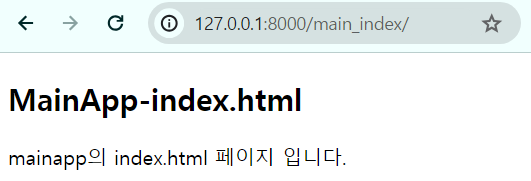
### http://127.0.0.1:8000/main_index
def index(requset) :
    return render(
        requset,
        "mainapp/index.html",
        {}
    )
  • templates\mainapp 파일 생성 후 index.html 작성
<!DOCTYPE html>
<html lang="ko">
  <head>
    <meta charset="UTF-8" />
    <meta name="viewport" content="width=device-width, initial-scale=1.0" />
    <title>FirstApp - index.html</title>
  </head>
  <body>
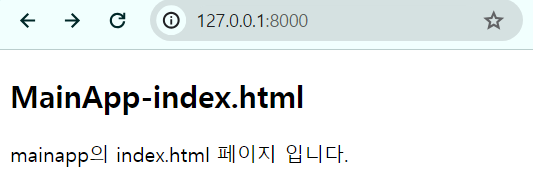
    <h2>MainApp-index.html</h2>
    <p>mainapp의 index.html 페이지 입니다.</p>
  </body>
</html>
  • urls.py
from django.contrib import admin
from django.urls import path
from firstapp import views as firstapp_view
from mainapp import views as mainapp_view

urlpatterns = [
    ### http://127.0.0.1:8000/main_index
    path('', mainapp_view.index),
    
    ### http://127.0.0.1:8000/main_index
    path('main_index/', mainapp_view.index),
  
    ### http://127.0.0.1:8000/index
    path('index/', firstapp_view.index),
    
    ### http://127.0.0.1:8000/index_html
    path('index_html/', firstapp_view.indexHtml),

    path('admin/', admin.site.urls),
]

  • 설치 라이브러리
더보기

Python 관련

Python

Python Extension Pack

Python Extended

Python Indent

Python Debugger

Python snippetes


HTML, CSS, JS 관련

HTML CSS Support

HTML5 extension pack

html5-skelton

Extended Html5 Boilerplate

Html5 Reset Css

CSS Snippets

VS Code JavaScript (ES6) snippets


Django 관련

Django

Django Snippets

Django Templates

Django Snippets


url을 각 app에서 관리하게 하기 _firstapp

  • config에 있는 urls.py를 firstapp에 복사
  • config에 있는 urls.py
from django.contrib import admin
from django.urls import path, include
# from firstapp import views as firstapp_view
# from mainapp import views as mainapp_view

urlpatterns = [
    ### firstapp의 urls.py 사용하기
    # http://127.0.0.1:8000/first/index
    path("first/", include("firstapp.urls")),
    
    # ### http://127.0.0.1:8000/main_index
    # path('', mainapp_view.index),
    
    # ### http://127.0.0.1:8000/main_index
    # path('main_index/', mainapp_view.index),
  
    # ### http://127.0.0.1:8000/index
    # path('index/', firstapp_view.index),
    
    # ### http://127.0.0.1:8000/index_html
    # path('index_html/', firstapp_view.indexHtml),

    path('admin/', admin.site.urls),
]
  • firstapp에 있는 urls.py
from django.urls import path
from . import views

urlpatterns = [
    # http://127.0.0.1:8000/first/index
    path('index/', views.indexHtml ),
    
    # http://127.0.0.1:8000/first/
    path('', views.indexHtml ),
]


url을 각 app에서 관리하게 하기 _mainapp

  • firstapp에 있는 urls.py를 firstapp에 복사
  • config에 있는 urls.py
from django.contrib import admin
from django.urls import path, include

urlpatterns = [
    ### firstapp의 urls.py 사용하기
    # http://127.0.0.1:8000/first/index
    path("first/", include("firstapp.urls")),
    
    ### mainapp의 urls.py 사용하기
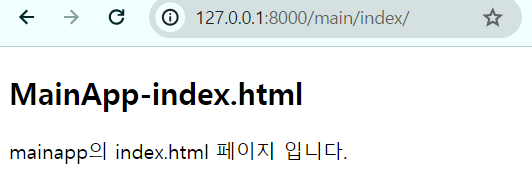
    # http://127.0.0.1:8000/main/index
    path("main/", include("mainapp.urls")),

    path('admin/', admin.site.urls),
]
  • mainapp에 있는 urls.py
from django.urls import path
from . import views

urlpatterns = [
    # http://127.0.0.1:8000/main/index
    path('index/', views.index ),
    
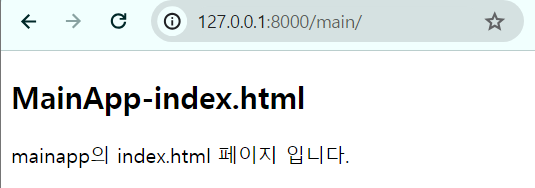
    # http://127.0.0.1:8000/main/
    path('', views.index ),
]


  • http://127.0.0.1:8000/ 만 입력 했을 때 main의 index가 뜨게 하는 방법
from django.contrib import admin
from django.urls import path, include
from mainapp import views as mainapp_view

urlpatterns = [
    ### firstapp의 urls.py 사용하기
    # http://127.0.0.1:8000/first/index
    path("first/", include("firstapp.urls")),
    
    ### mainapp의 urls.py 사용하기
    # http://127.0.0.1:8000/main/index
    path("main/", include("mainapp.urls")),
    
    # http://127.0.0.1:8000/
    path("", mainapp_view.index),
    path("index/", mainapp_view.index),
    
    path('admin/', admin.site.urls),
]


페이지 이동하기

  • mainapp > index.html (firstapp > index.html도 동일)
<!DOCTYPE html>
<html lang="ko">
  <head>
    <meta charset="UTF-8" />
    <meta name="viewport" content="width=device-width, initial-scale=1.0" />
    <title>FirstApp - index.html</title>
  </head>
  <body>
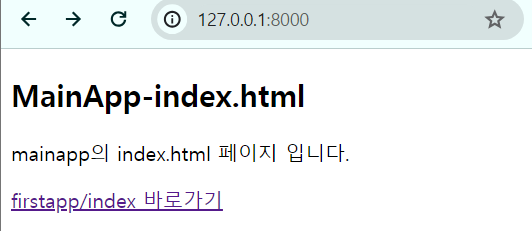
    <h2>MainApp-index.html</h2>
    <p>mainapp의 index.html 페이지 입니다.</p>
    <p>
      <a href="/first/">firstapp/index 바로가기</a>
    </p>
  </body>
</html>

클릭 시 해당 페이지로 이동


이미지 삽입하기

  • firstapp > static\firstapp > images 생성
  • firstapp의 index.html
    {% load static %} > static 폴더를 사용하겠다는 의미
{% load static %}
<!DOCTYPE html>
<html lang="ko">
  <head>
    <meta charset="UTF-8" />
    <meta name="viewport" content="width=device-width, initial-scale=1.0" />
    <title>FirstApp - index.html</title>
  </head>
  <body>
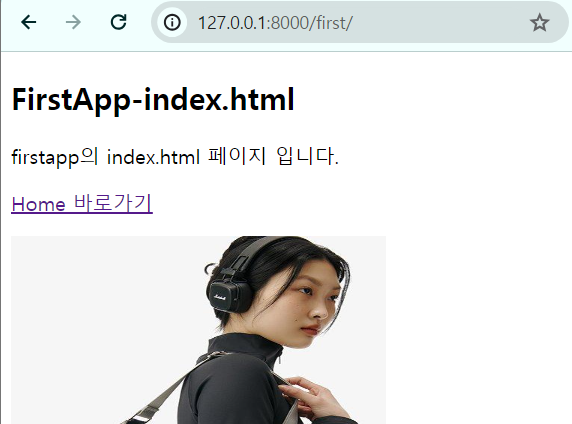
    <h2>FirstApp-index.html</h2>
    <p>firstapp의 index.html 페이지 입니다.</p>
    <p>
      <a href="/main/">Home 바로가기</a>
    </p>
    <p>
      <img
        src="{% static '/firstapp/images/fashion739.jpg' %}"
        width="300"
        height="300"
      />
    </p>
  </body>
</html>

  • 이미지 안불러와지면 settings.py에 가서 / 앞뒤로 띄어쓰기 한번 씩 하기 
STATICFILES_DIRS = [BASE_DIR / "static"]


jupyter 파일 웹에 적용하기_파일 생성해서 불러오기

  • 방법
    1. jupyter 에 있는 파일을 파이썬으로 저장
    2. firstapp에 ml_view 폴더 생성 후 안에 파이썬으로 저장한 파일 넣기
    3. 파이썬 내용 함수로 감싸기
  • firstapp > ml_view > ml_view.py 생성(여기 안에서는 항상 함수로 진행)
  • firstapp > ml_view.py
def getView() :
    ### 이미지 처리 수행 후
    ### 이미지를 static 위치에 저장까지만 하면 됨
    # - return은 안해도 됨. 테스트를 위해
    return "test"
  • firstapp > views.py
from firstapp.ml_view import ml_view

### http://127.0.0.1:8000/first/ml_view
def ml_View(request) :
    ### getView() 함수 호출하기
    rs_data = ml_view.getView()
    
    return render(
        request,
        "firstapp/ml_view/ml_view.html",
        {"rs_data" : rs_data}
    )
  • templates\firstapp > ml_view > ml_view.html 생성
<!DOCTYPE html>
<html lang="ko">
  <head>
    <meta charset="UTF-8" />
    <meta name="viewport" content="width=device-width, initial-scale=1.0" />
    <title>FirstApp - index.html</title>
  </head>
  <body>
    <h2>ML-View 페이지</h2>
    <p>받아온 값 rs_data ={{rs_data}}</p>
  </body>
</html>
  • firstapp > urls.py
from django.urls import path
from . import views

urlpatterns = [
    # http://127.0.0.1:8000/first/ml_view/
    path('ml_view/', views.ml_View ),
]


jupyter 파일 웹에 적용하기_기존 py 파일(Class) 사용하기

  • data_view.py 파일 사용
    그래프 저장 위치 변경하기

  • firstapp > views.py
from firstapp.data_view.data_view import Data_View

### http://127.0.0.1:8000/first/data_view/
def data_View(request) :
    ### Data_View 클래스 호출하기
    data_view = Data_View()
    
    return render(
        request,
        "firstapp/data_view/data_view.html",
        {}
    )
  • templates\firstapp > data_view > data_view.html 생성
{% load static %}
<!DOCTYPE html>
<html lang="ko">
  <head>
    <meta charset="UTF-8" />
    <meta name="viewport" content="width=device-width, initial-scale=1.0" />
    <title>FirstApp - index.html</title>
  </head>
  <body>
    <h2>Data-View 페이지</h2>
    <p>
      <img
        src="{% static '/firstapp/images/fig.png' %}"
        width="300"
        height="300"
      />
    </p>
  </body>
</html>
  • firstapp > views.py
from django.urls import path
from . import views

urlpatterns = [
    # http://127.0.0.1:8000/first/data_view/
    path('data_view/', views.data_View ),
]

model 웹에 적용하기

  • model_view.py 파일 사용
    데이터 읽어들이기 / 훈련모델 저장시키기 / 훈련모델 불러오기 파일 경로 변경하기
  • firstapp > views.py
from firstapp.model_view.ml_view import ML_View

### http://127.0.0.1:8000/first/model_view/
def model_View(request) :
    ### ML_View 클래스 호출하기
    ml_view = ML_View()
    
    ### 정확도
    score = ml_view.getModelScore()
    
    ### 예측하기
    # 사용할 예측 데이터
    # - [[200.0, 23.0, 25.8, 10.34, 3.66]]
    x_input = [[200.0, 23.0, 25.8, 10.34, 3.66]]
    pred_data = ml_view.getModelPredict(x_input)
    
    return render(
        request,
        "firstapp/data_view/data_view.html",
        {"score" : score,
         "pred_data" : pred_data}
    )
  • templates\firstapp > model_view > model_view.html 생성
<!DOCTYPE html>
<html lang="en">
  <head>
    <meta charset="UTF-8" />
    <meta name="viewport" content="width=device-width, initial-scale=1.0" />
    <title>Document</title>
  </head>
  <body>
    <h2>Model-View 페이지</h2>
    <p>정확도 : {{score}}</p>
    <p>예측 : {{pred_data}}</p>
  </body>
</html>
  • firstapp > urls.py
from django.urls import path
from . import views

urlpatterns = [
    # http://127.0.0.1:8000/first/model_view/
    path('model_view/', views.model_View ),
]

지도 웹에 적용하기

  • map_view.py 데이터 사용
    데이터 읽어들이기 파일 경로 변경하기
    folium 라이브러리 설치
  • firstapp > views.py
from firstapp.map_view.map_view import Map_View

### http://127.0.0.1:8000/first/map_view/
def map_View(request) :
    ### Map_View 클래스 호출하기
    map_view = Map_View()
    
    ### 지도 결과를 html로 받아오기
    map_html = map_view.getMapHtml() 
    
    ### 지도 시각화에 사용한 데이터 프레임 받아오기
    
    map_data = map_view.getDataFrame()
    
    return render(
        request,
        "firstapp/map_view/map_view.html",
        {
          "map_html" : map_html,
            "map_data" : map_data.to_html(),
         }
    )
  • templates\firstapp > map_view > map_view.html 생성
<!DOCTYPE html>
<html lang="en">
  <head>
    <meta charset="UTF-8" />
    <meta name="viewport" content="width=device-width, initial-scale=1.0" />
    <title>Document</title>
  </head>
  <body>
    <h2>Map-View 페이지</h2>
    <p>{{map_html | safe}}</p>
    <p>{{map_data | safe}}</p>
  </body>
</html>
  • firstapp > urls.py
from django.urls import path
from . import views

urlpatterns = [
    # http://127.0.0.1:8000/first/map_view/
    path('map_view/', views.map_View ),
]

728x90
반응형

+ Recent posts